A cleaner way to
cut dialogue.
Introduction.
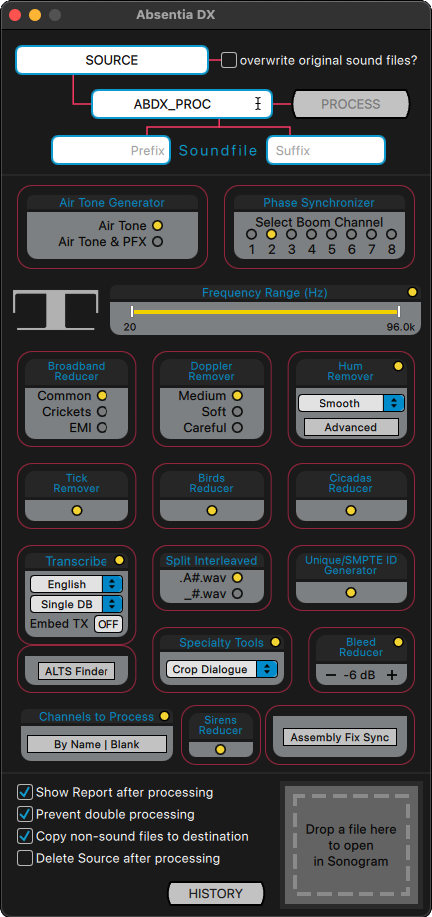
Absentia DX is an advanced audio-processing suite built for dialogue editors, re-recording mixers and post-production supervisors. It began as a noise problem-solver — feed it a production recording and it returns a cleaner take, free of obvious hums, wireless rings and ticks, without touching the timbre, cadence or presence of the human voice.
But cleaning is only where it starts. Absentia DX has grown into a complete dialogue toolkit that reaches across the whole editorial workflow — from the moment dailies land to the final cut before the mix:
- Cleaning — the flagship Hum Remover plus Tick Remover, broadband, Doppler and EMI reducers, plus Birds, Cicadas and Sirens reducers and a Bleed Reducer that pulls spill out of a mic — all stripping noise while protecting the voice.
- Transcribe & Alts Finder — convert dailies into searchable text, then find alternate takes by a line, a word or a fragment and spot them straight into Pro Tools.
- Assembly Fix Sync (AFS) — correct sample-accurate offsets between AAF clips and assembled multichannel tracks in seconds.
- Phase Synchronizer — align Boom and Lavalier mics so they cut together without phase cancellation.
- Air Tone Generator — synthesize room tone for ADR fills and international M&E mixes.
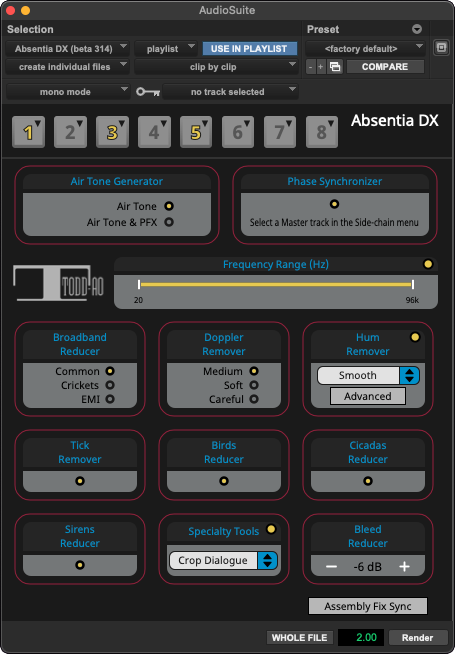
The suite ships in two flavors. The standalone app is engineered for batch work: drag a volume of dailies onto it and walk away. The AAX plug-in brings the same engine into the Pro Tools timeline, where you can reach for it clip-by-clip during the cut or the mix.
One engine, two surfaces.
Batch-process sound rolls before the edit begins, then reach for the plug-in whenever a single clip needs attention.
System requirements.
- macOS
- 10.15 Catalina or higher. Apple Silicon recommended.
- Windows
- Windows 10 (64-bit) or later.
- Pro Tools
- 2018 or higher for the AAX plug-in. 2025.6 or later for Spot to Pro Tools and Assembly Fix Sync from the app; 2025.10 or later recommended.
- Apple Silicon
- Required for Transcribe. Transcribe on a Silicon Mac and share the .xlsx database with your Intel workstation. Alts Finder runs on Intel.
- Supported formats
- WAV · AIFF · MP3 · FLAC · WMA · MP4 · MOV · Any sample rate · Any bit depth · up to 128 channels per poly-WAV (channels beyond 16 are selected by name, see chapter 08).
Installation.
Download the installer for your platform from absentiadx.com, then run the package. The setup wizard handles the rest.
- macOSDouble-click
Absentia_DX_Installer.pkgand follow the guided wizard. - WindowsDouble-click
Absentia_DX_Installer.exeand accept the defaults, or customize your install path. - First launchAccept the Todd-AO license agreement, then choose how to activate: Activate Server Key, Activate iLok Key, or start the trial. The activation window returns on every launch until a license is in place.
Trial access
Activate a full, unrestricted version of Absentia DX for a 7-day trial period. No feature gating — every tool is available during the trial.
Subscription model
Absentia DX operates on a subscription-based authorization, not a perpetual license. Switching between Server and iLok after purchase may incur charges — choose the license type that fits your workflow from the start.
Licensing & activation.
Server license
Activates two machines simultaneously. Deactivate on one to activate on another. Best for editors working between a studio rig and a home system who don't need day-to-day portability.
Click Activate Server Key, paste your license key, and you're running.
Deactivation & transfer
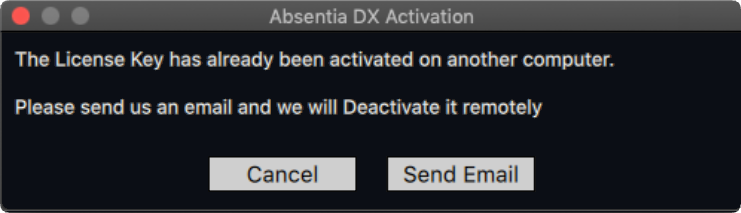
To move a server license to a new machine, open Help > Deactivate License Key on the old machine. If the old machine is unreachable, request a remote deactivation from the new device: paste your key, click Activate, then Send Email — we'll deactivate it remotely.
Deactivation works offline too: if the machine has no internet, the dialog offers to save a Deactivation Request file to email to software@todd-ao.com. The Deactivate menu item appears only for server licenses; iLok licenses are moved with iLok License Manager.
Offline activation
- Go fully offlineDisable Wi-Fi and unplug Ethernet before starting.
- Enter the keyPaste your key in the prompt and click Activate.
- ConfirmSelect Yes on the confirmation window. If this screen does not appear, your machine is still online.
- Save the requestClick Save the Activation Request to file. It lands in Documents as
ABDX_ActivationRequest.xml. Email it to software@todd-ao.com. - Load the responseWhen the response file arrives, click Load the Activation Response from file and select it. The app closes once activation completes; relaunch it.
iLok license
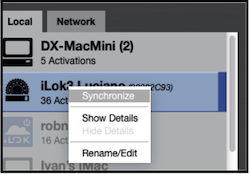
The license lives on a 2nd-generation or later key (iLok Cloud not available). Ideal for freelancers and mixers working across facilities — carry the key, carry the license.
Click Activate iLok Key, sign in to your iLok account, and transfer the license to the device.
Renewal & expiry
Server subscriptions. Starting 30 days before a server subscription ends, Absentia DX shows a reminder on launch: "Absentia DX subscription expires in N days". Renew Now opens the renewal page with your key already filled in, and the note beneath links to discounted early-renewal pricing. The reminder returns at 30, 15, 7, 3 and 1 days, and on the final day.
iLok subscriptions. Renew before the subscription expires. Renewing it later may involve extra costs and fees from PACE iLok licensing.
Using Absentia DX (Standalone app).
Absentia DX is built around a simple loop: point it at the work, choose the tools, hit process. Whether you're cleaning a single scene or a season's worth of dailies, the flow is the same.
Getting started
- Enable the tools you needSwitch on the processes in the main window — Hum Remover, Tick Remover, Transcribe and so on — and pick their presets.
- Set a Destination folderTell ABDX where to export the processed files.
- Drop your sourcesDrag a volume, a folder or loose files onto the main window.
While it runs
The progress window shows one row per file in flight with its own stop button. Pause holds the whole job; Continue resumes it. Tick Shutdown computer when finish for overnight batches. Closing the window asks whether to cancel the job. The Dock icon counts down the files remaining, and a notification tells you when the batch is done.
Metadata preservation
Processed files retain the full metadata of their originals — timecodes, scene and take fields, channel names. That means you can swap between the raw and ABDX versions at any point in the edit without losing sync or relink information.
App menus
A few settings live under the app's menu bar rather than the main window:
- Preferences (Cmd+,) — Parallel Processing count (set to Auto for optimal performance), Playback Device for Alts Finder and Sonogram, and Spot-to-Pro-Tools options.
- Settings > Presets — Create, recall or delete custom presets across every tool.
- Help > Update — Check daily or on demand for new versions.
- Help > Manual (Online) — opens this guide.
- Help > Deactivate License Key — releases a server seat for use on another machine.
Path settings.
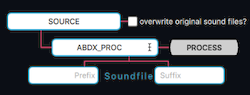
| Field | What it does |
|---|---|
| SOURCE | The folder or volume to process. Drag and drop is the fastest way — but you can also click to browse manually. |
| DESTINATION | Destination folder for processed files. By default, outputs are written alongside the sources. |
| Prefix/Suffix | String prepended/appended to the processed filename in the destination. |
General settings.
These are the switches at the bottom of the main window. They are not tied to any single tool: they govern reporting, housekeeping and what happens to your source material once a job finishes.
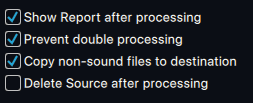
Show Report after processing
Pops a sortable report after the job — every processed file, every error, every status at a glance.
Prevent double processing
Absentia DX stamps each processed file. If a stamped file is dropped again, it is skipped and shows as Processed in the History report.
Copy non-sound files to destination
When dropping a full dailies folder, sound reports and other sidecar files are copied alongside the processed audio.
Delete Source after processing
Moves each original to the Trash as soon as that file has finished successfully with every enabled tool. Still: keep your originals backed up elsewhere.
Drop a file to open in Sonogram
The drop zone beside the checkboxes loads any file straight into the spectral viewer — see Sonogram player.
Metadata Channel Selector.
Location sound mixers rarely keep the same track layout from scene to scene. The boom that sits on channel 2 on Monday is on channel 3 by Thursday. The Metadata Channel Selector lets you pick tracks by their metadata name instead of their channel number, so a "Boom" is always a "Boom", in every file of the project.
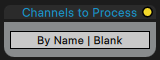
The button under Channels to Process shows the current setting: By Name, All, None, or a list of channel numbers. When a removal option is on, | Blank or | Un-Selected is added to the label.
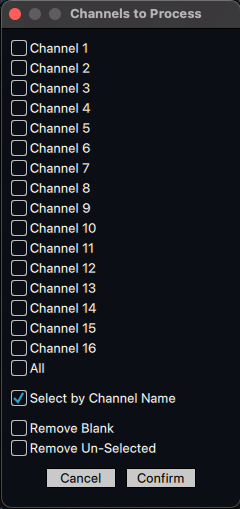
Click the button to open the small Channels to Process window. Here you tick channels by number, or turn on Select by Channel Name. Two extra options decide what ends up in the output: Remove Blank drops silent channels, Remove Un-Selected drops the channels you didn't tick. Confirm to save.
With Select by Channel Name on, a second, larger window opens when you start a job: Select Channels for Processing. It lists every channel of every file in the job with its metadata name, so you can select them by name or by pattern (Boom, Plant, Mix).
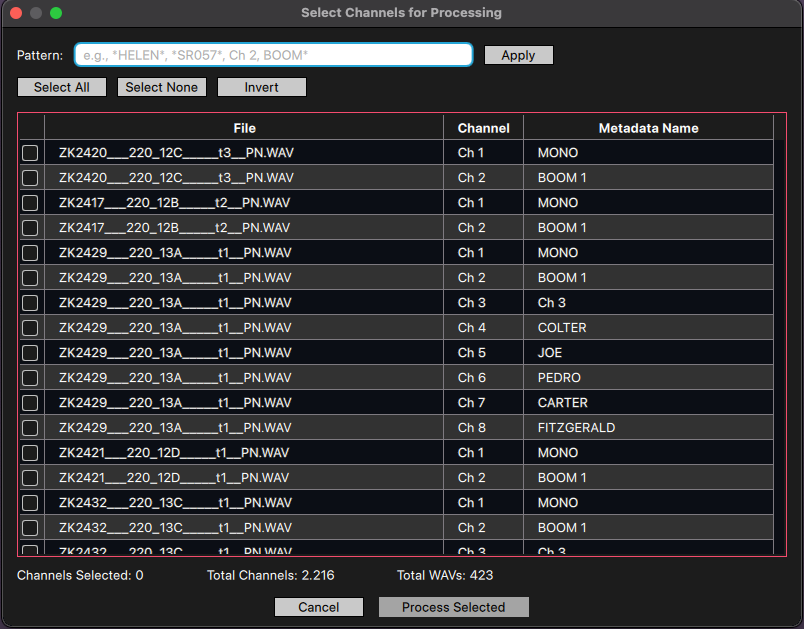
Channels for Processing
Speed up a job by selecting specific channels from a poly WAV. Unchecked channels are skipped. Disable the box entirely to process every channel. Channels beyond 16 can only be selected by name.
Remove Blank
Automatically detects and excludes silent channels from the processed output — faster jobs, smaller files.
Remove Un-Selected
Strips channels that aren't ticked in the selector. Only your chosen tracks end up in the output files.
Pattern matching
Type a keyword — Boom, Mix, Lav — and click Apply. It matches anywhere in the channel's metadata name, so typing boom selects every channel that contains it, such as Boom1 and Boom2.
Sortable columns
Click any header to reorder the list. Sort by Metadata Name to group similar tracks together and see at a glance how many booms or mixes live in your session.
Invert selection
Select the channels you don't want, then Invert. When only a few channels need to be excluded from an otherwise large selection, it's often faster to tick those few and click Invert than to tick everything you do want one by one.
Watch it in action → New Channel Name Selector (video)
Background noise tools.
The Hum Remover is the flagship of Absentia DX — the tool that earned its reputation in dailies rooms across the industry. Alongside it sits a suite of special tools built for the common noise problems of location sound: Broadband, Doppler, EMI from radios, seasonal crickets and birds.
Every preset was tuned with the same promise: don't touch the voice's fundamental and harmonics. The Hum Remover Smooth preset in particular is safe for batch processing across an entire project.
Hum Remover presets
| Preset | Behavior | Batch-safe |
|---|---|---|
| Smooth | Conservative removal of hums and wireless rings. The workhorse. | Yes |
| Strong | Aggressive removal for stubborn hums. | Careful |
| Tight | Tighter, closer-to-dialogue removal — for rings that sit on top of speech. | Careful |
| Electric Engines | Removes hum from cameras, generators and projectors. | Careful |
| EMI Smooth | Conservative removal of electromagnetic interference from radios and transmitters. Goes deeper than standard HR. | Careful |
| EMI Strong | Aggressive EMI removal. Use discreetly — may modify the voice. | Risky |
| Smooth Under Dialog | Focused on the low end that overlaps with dialogue fundamentals. | Yes |
Advanced window
Click Advanced Window to reveal the Hum Remover's internals. Here you can build custom presets by tuning the learning duration, hum threshold and reduction parameters. Use the + and - buttons to save or remove presets as you iterate.
| Parameter | Effect |
|---|---|
| Learning Duration (s) | Longer window builds a richer hum model. High values can start to affect dialogue — go slow. |
| Hum Threshold (dB) | Lower values catch quieter hums. |
| Hum Reduction Strength (dB) | Higher values pull deeper hums out of the signal. Push too far and you'll hear the voice thin. |
| Amount of Hum Limit | Higher values capture shorter and quieter hums. High settings can intrude on dialogue. |
Other reducers
Broadband Reducer
Common — identifies small noise peaks and applies the Smooth algorithm to them.
Crickets — eliminates crickets and high-pitched whirring, 2 kHz to 22 kHz.
EMI — like Crickets but full-range.
Doppler Remover
Eliminates hums and whistles with pitch variation — a plane flying past, a motor winding down. Handles pitch-changing conditions that the standard Hum Remover leaves behind. Three presets.
Birds & Cicadas
Targeted reducers for chirps and cicada beds. Removes the specific unwanted sounds while keeping the dialogue intact.
Range Selector
Constrain the frequency band that Hum Remover and Broadband Reducer operate on. Double-click a number to enter a value manually.
* The Range Selector does not apply to the Broadband Reducer Crickets preset.
Dialog editing tools.
Air Tone Generator
The redesigned Air Tone Generator synthesizes room tone from the surrounding material. It's ideal for ADR fills and international M&E mixes, and ships with two tuned presets.
- Air Tone — replaces dialogue and production effects (PFX) with room tone generated from nearby regions.
- Air Tone & PFX — replaces only the dialogue, preserving production effects and the actors' movements.
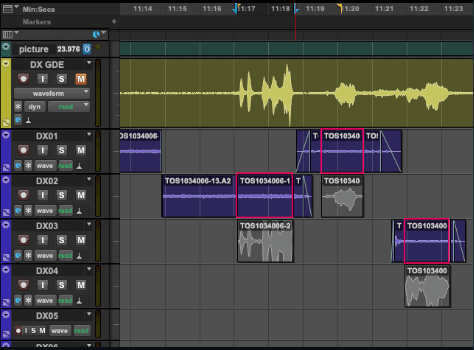
Phase Synchronizer
Select a master channel, align the others to it, then cut the Boom and Lavaliers together without phase cancellation. In Pro Tools, set the master via the side-chain selector, select the clip to align, and click Render.
Specialty Tools
Crop Dialogue
Removes silent gaps between lines while keeping voices, breaths and production effects untouched.
Cut Dialogue
Eliminates the dialogue entirely, leaving a shorter clip. Can also generate a clean room-tone clip from a Boom track.
Breath Fill
Replaces faint breaths with matching room tone — for when a performance sits a little too alive.
Trim Silence
Closes up gaps between lines to build a compilation.
Tick Remover
Eliminates the clicks and ticks that creep into production recordings, leaving a clearer dialogue underneath.
Split Interleaved into Mono
Breaks a polyphonic .wav into multiple mono files. Two naming schemes available: xxx.A1.wav or xxx_1.wav. Standalone only.
Unique / SMPTE ID Generator
Stamps dailies with SMPTE IDs into WAV metadata in a batch pass — the standard pre-assembly step. Those IDs are then used by all post editors to relink files on a different machine, using the filename and ID.
Assembly Fix Sync.
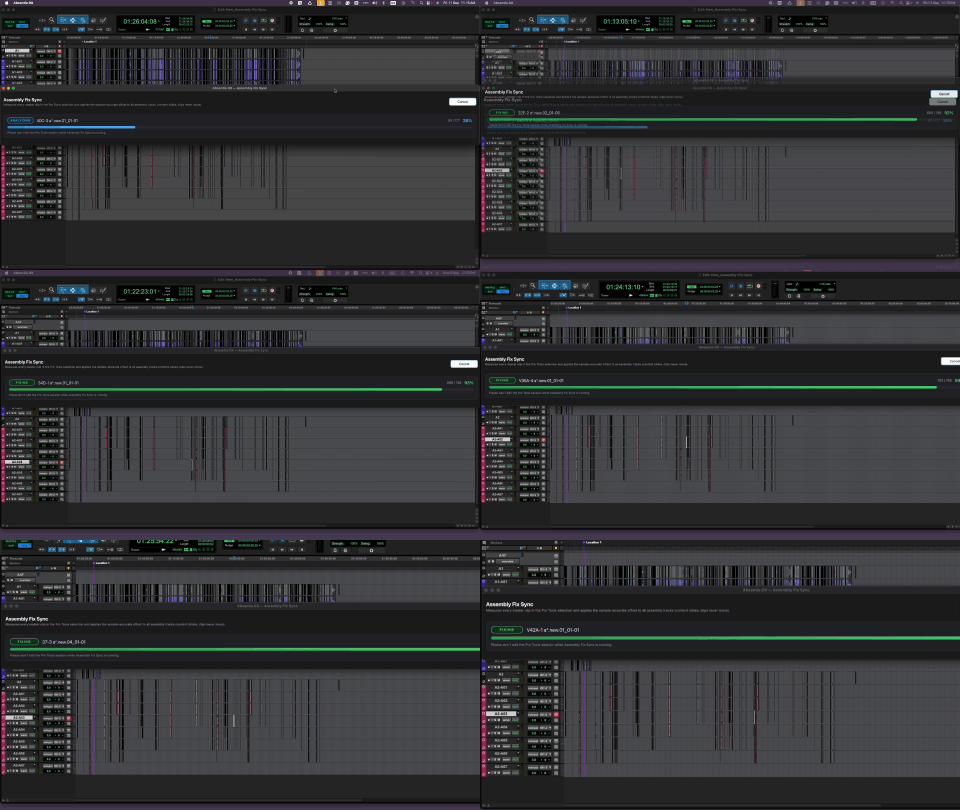
When a dialogue assembly is built from an AAF, the assembled multichannel tracks underneath it don't always land exactly where the original edit says they should. A handful of samples off, sometimes more, depending on how the assembly was exported and rebuilt. That small offset is enough to throw a cut out of phase, and it usually means an editor nudging clips by ear, track by track, roll by roll.
Assembly Fix Sync (AFS) does that work for you. It compares a master AAF clip against its assembly tracks, measures the offset between them, and slides the assembly content into sample-accurate sync, without moving your edit points.
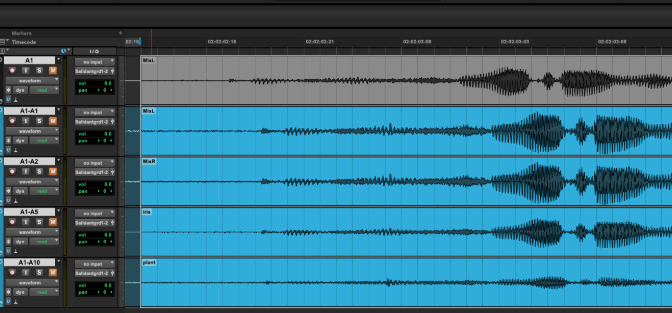
Two ways to run it
On Pro Tools 2025.6 or later, AFS runs from the Absentia DX application itself, talking to Pro Tools directly through the Pro Tools Scripting Layer. There's no AudioSuite render, no clipboard trick, nothing to bounce. It checks a whole reel in one pass and gives you a clear receipt of what was fixed and what still needs your ears.
If you're on an older version of Pro Tools, before 2025.6, use the AAX plug-in instead. It keeps the original Assembly Fix Sync, working the way it always has: one set at a time, with the master and assembly tracks selected by hand.
Requirements
- App version — Pro Tools 2025.6 or later, with the Pro Tools Scripting Layer enabled. 2025.10 or later is recommended, since from that version Pro Tools can automatically restore clip mute after a correction.
- Plug-in version — Pro Tools 2018 or later, macOS only.
Using the app version
The one rule: name your tracks. AFS pairs a master track with its assembly tracks by name. Each master track needs a short name, and every assembly track that belongs to it carries that same name plus a dash — for example master A1 with assembly tracks A1-01, A1-02, A1-03, and so on. Track order in the Edit window doesn't matter.
- Select your rangeMake an edit selection in Pro Tools covering the reel, scene or section you want checked. Every master clip that touches the selection takes part.
- Click Assembly Fix SyncUse the button in the Standalone app to start processing.
- Let it workAFS works unattended in Pro Tools. First, it measures the offset on every master clip. The second pass nudges the assembled tracks.
- Read the receiptWhen the pass finishes, the window shows a report: a green "IN SYNC" banner when everything checks out, or a red box at the top listing the clips that need review when something needs your attention. Click any clip's timecode in that box to copy it, then paste it straight into the Pro Tools timeline to jump there and check the cut by ear.
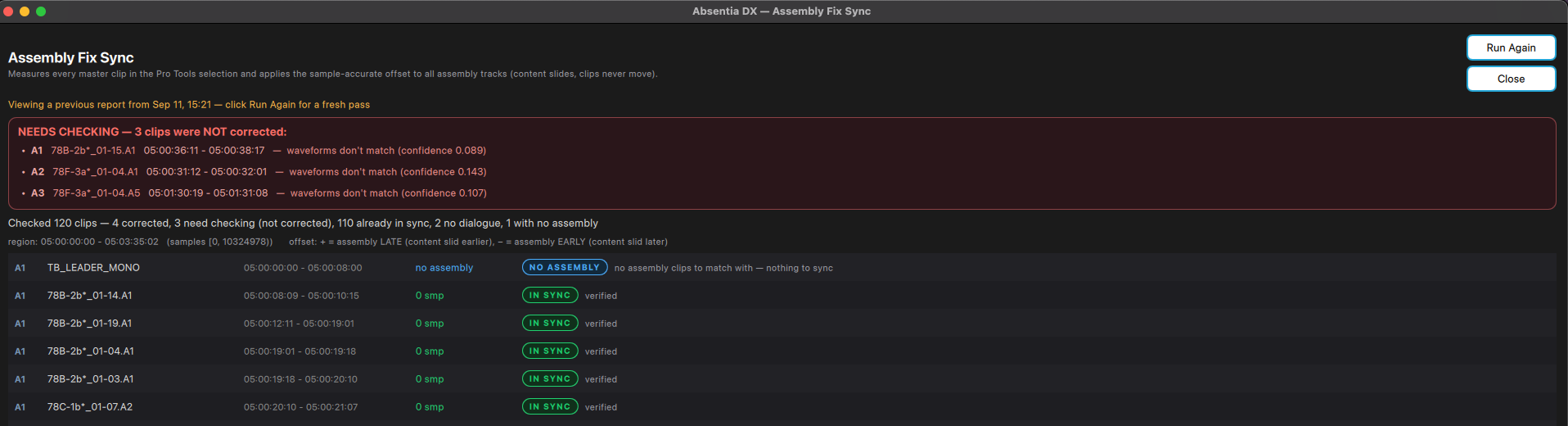
See it in action → Assembly Fix Sync walkthrough
Transcribe & Alts Finder.
Transcribe converts audio into text and builds searchable databases from your sound rushes or ADR recordings. Those databases feed Alts Finder, which locates alternate takes in seconds and spots them directly into Pro Tools. A job that used to burn hours now takes minutes.
The standard workflow: set the language, choose Single DB, drop a folder of dailies onto Transcribe, and let it run. When it's done, the project database is ready for Alts Finder.
18 languages supported
English · Spanish · German · French · Italian · Portuguese · Chinese · Japanese · Korean · Greek · Persian · Turkish · Hebrew · Hindi · Russian · Norwegian · Swedish · Finnish
Transcribe settings
| Setting | Behavior |
|---|---|
| Single DB | Transcribes every WAV into one consolidated .xlsx database. |
| Split DB | Creates a separate database per WAV file. Databases save to the Desktop by default. |
| Append / Create | When dropping new files, choose to append to an existing database or start a new one. Custom database name and save location are supported. |
| Embed TX | Writes transcriptions into the WAV metadata so RX, Audition or Soundminer can show the text above the waveform. ⚠ It generates a new set of files — slower than a plain XLSX pass. |
| Channels to Process | Target a subset of channels — or leave disabled to transcribe every channel. |
See it in action → Transcribe tutorial video
Alts Finder
Open Alts Finder and drop in the XLSX databases generated by Transcribe. You can filter by Transcription, Scene, Take, Character or Path — the found / total counts live in the top-right corner.
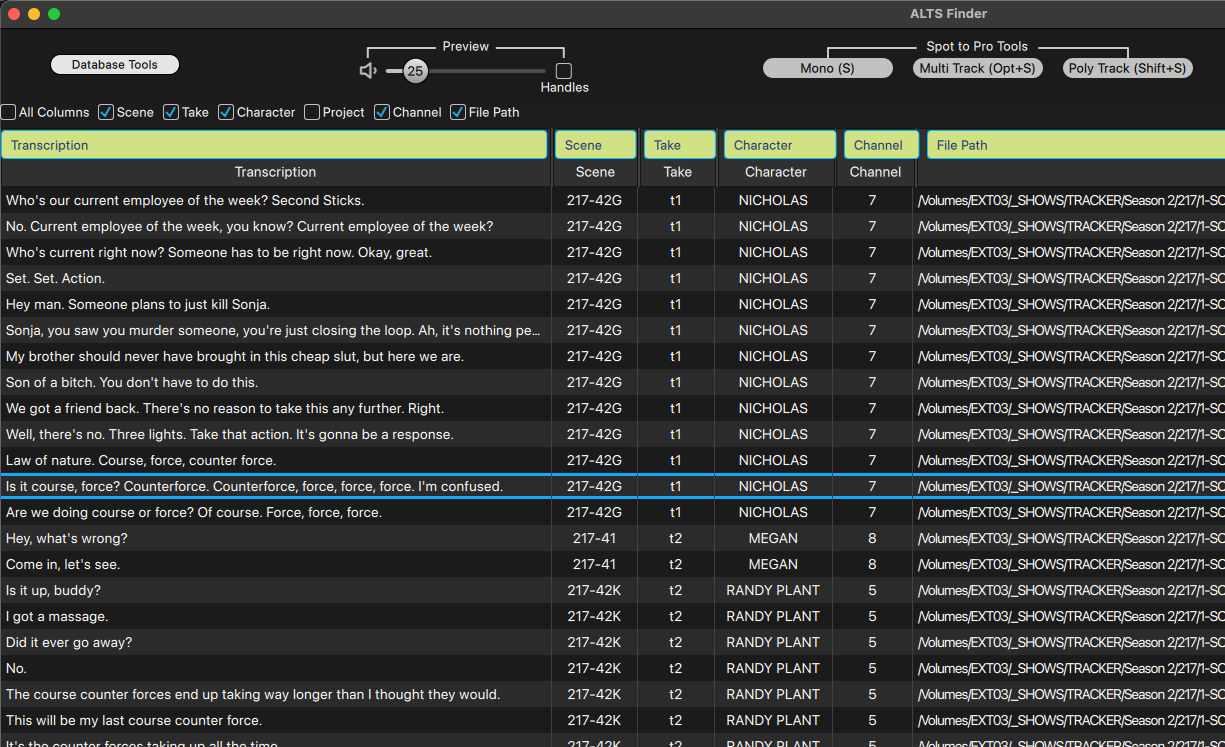
Database management
| Action | Effect |
|---|---|
| Open | Clears current databases and opens a new one from scratch. |
| Save | Saves the currently open, modified database. |
| Clear | Removes all loaded databases. |
| Import | Appends the imported records to the existing loaded data. |
| Export | Acts as Save As — can consolidate two or more imported databases into a single output XLSX. |
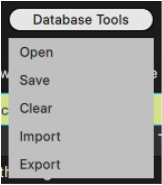
Dropping databases into Alts Finder behaves as an Import.
Shortcuts
Playback & editing
Click a record to play it, or use SPACE to start and stop. Arrow keys walk you through the search results. Volume scales from 0% to 200% — useful for dailies recorded hot or quiet. Press ⌘E on any record to edit its transcription (great for cleaning up efforts and breaths). Double-click Scene, Take or Project to edit those fields; ENTER saves to one record, ⌘ENTER applies the edit to every visible record in that column.
Waveform Viewer
Introduced in v3.4.8, the Waveform Viewer lets you visually trim a line's start and end when Transcribe's timing drifts. Edit the boundaries with the mouse, shift the whole line with ⌘+drag, save with ⌘S.
- ⌥ + mouse click — opens the Waveform Viewer
- ⌥ + mouse wheel — horizontal zoom
- ⌥⇧ + mouse wheel — vertical zoom
- ⇧ + mouse wheel — horizontal scroll
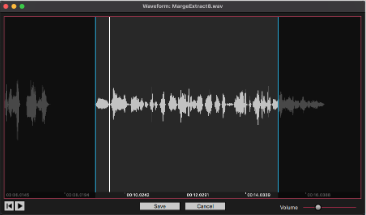
Relinking files
Because databases are portable .xlsx files, you can move them between machines. When you press play on a new machine, a Relink prompt appears — point it at the dailies folder and the system scans and reconnects automatically. Use Remove offline records afterwards to clean up any remaining unlinked entries. Large dailies folders might take a minute to relink.
Spotting to Pro Tools.
Alts Finder offers three spotting modes, each bound to a single keystroke. All three respect your Reference Original preference and a custom handle length (0–60 seconds) set in Preferences (⌘,).
Mono Spotting
Exports the selected record to a mono track in Pro Tools. With Reference Original enabled, links to the source file (full handles, no new media). Disabled, creates a new file in Audio Files with your custom handle length.
S
Multi Track Spotting
Exports every channel of the selected record into separate mono tracks. Always creates new files — Reference Original isn't possible in this mode.
⌥S
Poly Track Spotting
Exports every channel of the selected record into a poly-track (multichannel). With Reference Original enabled, links to the source file; disabled, creates new files with custom handles.
⇧S
Spot to WAV
Exports the selected line directly to a WAV file — the Windows-friendly (and Nuendo-friendly) alternative to Spot to Pro Tools, which relies on AppleScript. The same three mode shortcuts (S, ⌥S, ⇧S) apply, and the system works even with a Pro Tools session open.
Close Pro Tools to export WAVs instead.
Choosing a transcription method
Transcribe only the Mix channel
Fastest option — a six-channel roll transcribes roughly six times quicker. Alts Finder can only play back that channel, not separate ISOs. When spotting with Reference Original, you can still swap channels in Pro Tools via Matching Alternates (Studio) or Field Recorder Guide Track (Ultimate).
Transcribe ALL channels
Slower to transcribe, but you gain preview playback and spotting for every channel in Alts Finder — a huge win for auditioning Lav mic lines before you commit. Pairs well with Reference Original disabled and short handles for speed-cutting.
Sonogram player.
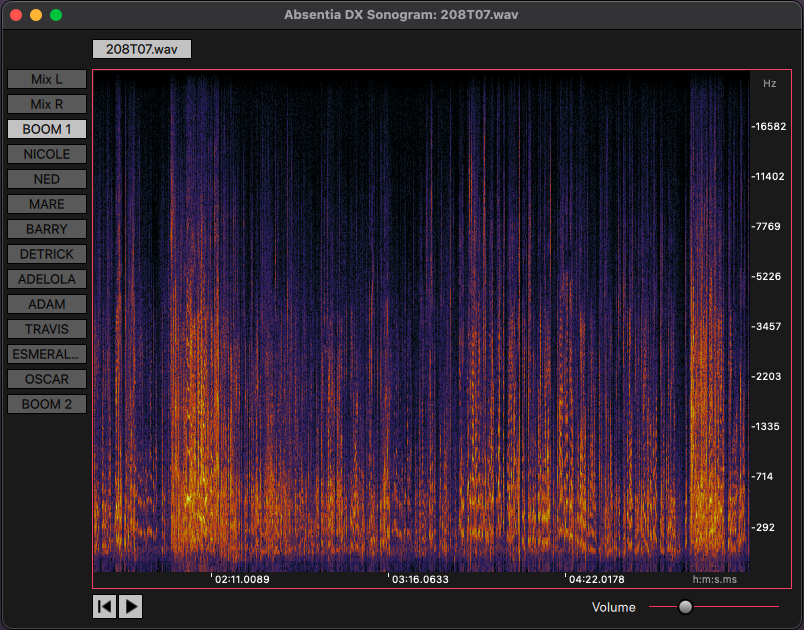
The Sonogram window shows a spectral view of your audio and lets you hear it channel-by-channel with the built-in player.
Open it by dragging files into the sonogram box — a single file opens on its own. Clicking Sonogram in the history report opens the processed file alongside the original, so you can see the cleaning Absentia has done side by side.
What it does
- Multi-channel spectrum. Inspect each channel of a poly WAV individually. The Channel Name metadata tells you which microphone you're looking at.
- Compare versions. Drop multiple processings of the same clip to flip between them — pick the one that sounds and looks best.
- Isolated playback. Listen to a single channel at a time — no more guessing which mic is causing the problem.
History window.
Click History in the settings window for a detailed report of every file ABDX has touched: paths, status, timings, errors. Export the log as CSV for production records, or clear it when you start a new show.
| Status | Meaning |
|---|---|
| Done | Processing completed successfully. |
| Processed | File was processed in an earlier pass and skipped this time. |
| Canceled | The user canceled this file mid-process. |
| None | File was analyzed and discarded — nothing to process. |
| Error | Hover the error cell for the full description. |
The Absentia DX plug-in.
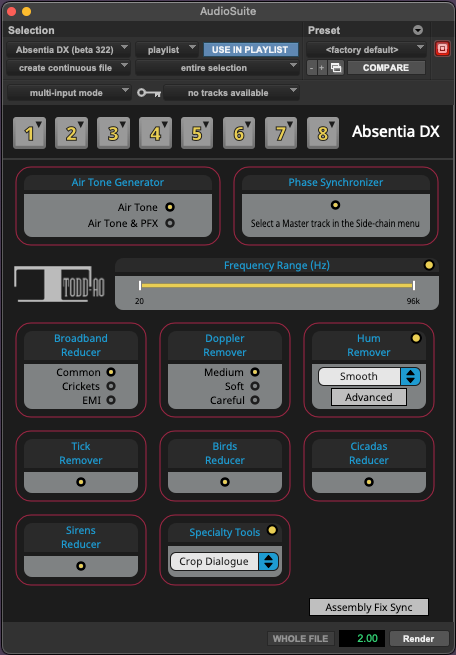
The AAX plug-in integrates the full Standalone library, bringing every essential tool inside the Pro Tools timeline. Select a clip (or several), pick a process from the plug-in window, and click Render.
Recommended workflow
- Pre-cut pass in StandaloneProcess all sound rolls with Hum Remover (Smooth) + Tick Remover. Safe, artifact-free, clean starting point for the editors.
- Editorial pass in the plug-inDuring the edit and the mix, reach for the AAX plug-in on any clip that still needs attention.
- Settings to preserve editsTo process multiple clips on a track — or to keep fades and edits intact — set the plug-in to create individual files and clip by clip, as you would with other AAX tools.
Plug-in hotkeys.
The AAX plug-in ships with eight customizable hotkey slots along the top of the interface. Each slot can store a tool enable/disable state, trigger Render on click, and synchronize with external control surfaces like StreamDeck.
Configuring a hotkey
- Open the slot menuClick the top-right corner of the hotkey button.
- Save a presetSave the current tool configuration into the slot — it becomes recallable from that button for the rest of the session.
- Recall & renderClick the button again to recall the preset and apply Render in one action.
● Yellow
A preset is associated with this hotkey.
● Gray
No preset associated — the slot is empty and ready to capture.
FAQ & troubleshooting.
Can I process MP3 or AIFF files?
Yes. ABDX handles WAV, AIFF, MP3, FLAC, WMA, MP4 and MOV.
Can I process 96 kHz WAV files or higher?
Yes — there are no limits on sample rate or bit depth.
Can I batch-process a large folder, say 120 GB?
Yes. Our benchmark is 40 GB in 6 hours on a 3.5 GHz i7 with an SSD, running Hum Remover and Tick Remover.
What's the maximum channel count per file?
ABDX handles poly-WAV files with up to 128 channels.
How does it treat a multi-channel poly-WAV — same processing across all tracks?
No — Absentia DX analyzes and processes each channel independently. A noisy Lav and a clean Boom are treated on their own terms.
My iLok subscription renewed but my iLok still shows expired.
If your iLok was offline during the auto-renewal window, the subscription won't have pushed to the physical key. Connect the iLok and sync via iLok License Manager to pull the update.
Credits & license.
Credits
- Rob Nokes
- Creator
- Evgeny Globa
- Designer & Programmer
- Luciano Del Zoppo
- Designer & Tester
- Augustine Pereira
- E-Commerce
Absentia DX™ is a trademark of TODD-AO in the United States.
US Patent No. 9,978,393. Absentia DX uses third-party libraries.
Todd-AO Software License Agreement
THIS IS A LEGAL AGREEMENT BETWEEN YOU AND TODD-AO ("Todd-AO"). READ THIS AGREEMENT CAREFULLY BEFORE USING THE ABSENTIA DX APPLICATION. BY USING THIS APPLICATION, YOU AGREE TO BE BOUND BY THE TERMS AND CONDITIONS SET FORTH BELOW AND BY ALL POLICIES AND AGREEMENTS INCORPORATED BY REFERENCE, AND YOU REPRESENT AND WARRANT THAT YOU ARE LAWFULLY ABLE TO ACCEPT AND COMPLY WITH THESE TERMS AND CONDITIONS OF USE. IF YOU DO NOT AGREE TO ALL OF THESE TERMS AND CONDITIONS OF USE, DO NOT ACCESS OR USE THIS APPLICATION.
SOFTWARE. "Software" means the Todd-AO executable software product accompanying this Agreement, along with any modules, presets, and/or user documentation.
LICENSE. Subject to all the terms and conditions of this Agreement, you (a natural person) may use the Software on a stand-alone computer. If more than one user will be using the Software at one time, you must obtain from Todd-AO an additional license for each additional concurrent user of the Software. The Software is "in use" on a computer when loaded into memory (RAM). You may make one copy of the Software solely for backup or archival purposes if all copyright and other notices are reproduced on that copy, or you may copy the Software to a single hard disk provided you keep the original solely for backup or archival purposes. If the Software is an upgrade, you must have a license for the product from which it is upgraded. If you receive the Software in more than one media form, that does not affect the number of licenses you are receiving or any other term of this Agreement.
OWNERSHIP. The Software and all intellectual property rights therein (including copyrights, patents, trade secrets, trademarks, and trade dress) are owned by Todd-AO or its suppliers and are protected by the laws of the United States and other countries and by international treaty provisions. Todd-AO retains all rights not expressly granted in this Agreement.
OTHER RESTRICTIONS. You may not modify, adapt, decompile, disassemble or otherwise reverse engineer the Software, except to the extent this restriction is expressly prohibited by applicable law. You may not loan, rent, lease, or license the Software, but you may permanently transfer your rights under this Agreement provided you transfer this Agreement, all Software, and all accompanying printed materials and retain no copies, and the recipient agrees to the terms of this Agreement. Any such transfer must include the most recent update and all prior versions.
LIMITED WARRANTY. Todd-AO warrants that, for a period of thirty (30) days from your date of receipt, the Software will substantially conform to the applicable user documentation provided with the Software. Any implied warranties which may exist despite the disclaimer herein will be limited to thirty (30) days. This Limited Warranty is void if you obtain the Software from an unauthorized reseller, you violate the terms of this Agreement, or if the failure of the Software is due to accident, abuse, or misapplication. Some states/jurisdictions do not allow limitations on the duration of an implied warranty, so this limitation may not apply to you.
CONFORMANCE TO STANDARDS. The Software may include features and presets to process audio to conform to various industry standards. While Todd-AO has diligently worked to make the Software and presets accurately implement any such industry standards, Todd-AO can make no representation or warranty that the Software or presets will make audio correctly comply with any present or future standard.
YOUR REMEDIES. Todd-AO's sole obligation and your exclusive remedy for any breach of the warranty will be, at Todd-AO's sole option, either the return of the purchase price you paid or, if you return the Software, together with all media and documentation and a copy of your receipt, to the location where you obtained it during the warranty period, the repair or replacement of the Software, media, and documentation.
REGISTRATION INFORMATION. When you activate the Software, Todd-AO may collect your name and email address and other contact information you choose to provide. Todd-AO may use this information to contact you regarding upgrades and new products, and also to gather statistical data that does not identify individual users.
USAGE INFORMATION. When you use the Software, Todd-AO may collect certain information about your computer and your interaction with the Software via the internet ("Usage Information"). Usage Information is information on how you interact with the Software and is then utilized by Todd-AO for statistical analysis for improving the Software, and to provide you with a more relevant user experience. No direct personal information or audio files/samples are collected as part of this Usage Information. Usage Information is generally collected in the aggregate form, without identifying any user individually, although IP addresses, computer and session ids in relation to purchases and downloads/installations of the Software may be tracked as part of Todd-AO's customer order review, statistical analysis, and fraud and piracy prevention efforts. This Usage Information may be sent to a Todd-AO web or third party cloud server for storage or further processing by Todd-AO and/or its partners, subsidiaries, or affiliates, including, but not limited to, Google Analytics.
DISCLAIMER. TO THE MAXIMUM EXTENT PERMITTED BY APPLICABLE LAW, TODD-AO DISCLAIMS ALL OTHER WARRANTIES, EXPRESS OR IMPLIED, INCLUDING BUT NOT LIMITED TO THE IMPLIED WARRANTIES OF NON-INFRINGEMENT, MERCHANTABILITY, AND FITNESS FOR A PARTICULAR PURPOSE. TODD-AO DOES NOT WARRANT THAT THE SOFTWARE WILL MEET YOUR REQUIREMENTS OR THAT THE SOFTWARE WILL OPERATE UNINTERRUPTED OR ERROR-FREE. THE WARRANTY AND REMEDIES SET FORTH HEREIN ARE EXCLUSIVE AND IN LIEU OF ALL OTHERS, ORAL OR WRITTEN, EXPRESS OR IMPLIED. The Limited Warranty set forth herein gives you specific legal rights, and you may have others under applicable law, which may vary depending on your location. No dealer, distributor, agent, or employee of Todd-AO is authorized to change or add to the warranty and remedies set forth herein. Any other software furnished with or accompanying the Software is not warranted by Todd-AO.
LIMITATION OF LIABILITY. TO THE MAXIMUM EXTENT PERMITTED BY APPLICABLE LAW, TODD-AO WILL HAVE NO LIABILITY FOR ANY DAMAGES WHATSOEVER ARISING OUT OF THE USE OF OR INABILITY TO USE THE SOFTWARE (INCLUDING, WITHOUT LIMITATION, DAMAGES OR COSTS FOR LOSS OF PROFITS, BUSINESS, GOODWILL, DATA OR OTHER ASSETS, OR COMPUTER PROGRAMS) EVEN IF TODD-AO HAS BEEN ADVISED OF THE POSSIBILITY OF SUCH DAMAGES. IN NO EVENT WILL TODD-AO BE LIABLE FOR ANY AMOUNTS EXCEEDING THE AMOUNTS RECEIVED FROM YOU FOR YOUR LICENSE OF THE SOFTWARE. Some jurisdictions do not allow exclusion or limitation of liability for consequential or incidental damages, so this limitation may not apply to you.
CHANGES. Todd-AO reserves the right to make any changes to these Terms and Conditions of Use, this Application, or any policy or licensing agreement of this Application, at any time and in its sole discretion, without prior notice. Any changes will be effective immediately upon posting on this document. Your continued use of this Application following the posting of changes will constitute your acceptance of such changes.
TERMINATION. The Agreement will terminate automatically if you fail to comply with any of its terms. On termination, you must immediately cease using and destroy all copies of the Software.
LICENSES TO U.S. GOVERNMENT. This paragraph applies to all acquisitions of the Software by or for the federal government, or by any prime contractor or subcontractor (at any tier) under any contract, grant, cooperative agreement, or other activity with the United States government (collectively, the "Government"). By clicking "I ACCEPT" below, you are agreeing on behalf of the Government that the Software is "commercial computer software" and "commercial computer software documentation" within the meaning of the acquisition regulation(s) applicable to this procurement. These terms and conditions alone will govern the Government's use of the Software and will supersede any conflicting contractual terms or conditions. If the license granted by these terms and conditions fails to meet the Government's needs or is inconsistent in any respect with Federal law, the Government must destroy all copies of the Software. The contractor/Manufacturer is Todd-AO, 4712 Admiralty Way # 497, Marina Del Rey, CA, 90292.
GENERAL. The export of the Software from the United States and re-export from any other country is governed by the U.S. Department of Commerce under the export control laws and regulations of the United States and by any applicable law of such other country, and the Software may not be exported or re-exported in violation of any such laws or regulations. This Agreement is the complete and exclusive statement of the agreement between you and Todd-AO and supersedes any proposal or prior agreement, oral or written, and any other communications relating to the subject matter of this Agreement. This Agreement is in the English language only, which language will be controlling in all respects, and all versions of this Agreement in any other language will be for accommodation only.
LEGAL. This Agreement will be governed by and interpreted under the laws of the State of California, United States of America, without regard to conflicts of law provisions. The application of the United Nations Convention of Contracts for the International Sale of Goods is expressly excluded. To the extent permitted by law, you agree that no lawsuit or any other legal proceeding connected with the Software shall be brought or filed by you more than one (1) year after the incident giving rise to the claim occurred. IN ADDITION, ANY SUCH LEGAL PROCEEDING SHALL NOT BE HEARD BEFORE A JURY. EACH PARTY GIVES UP ANY RIGHT TO A JURY TRIAL. To the extent permitted by law, you agree that you will not bring any class action lawsuit against Todd-AO or be a representative plaintiff or plaintiff class member in any such lawsuit.
Should you have any questions about this Agreement or Todd-AO's software use policies, or if you desire to contact Todd-AO for any other reason, please email software@todd-ao.com.
Please indicate that you understand and accept these terms by clicking the "Accept" option. If you do not accept these terms, the installation will terminate.
Absentia DX uses third-party libraries.
ABSENTIA DX™ (C) 2020-2026 by TODD-AO™ company.
US Pat. No.: 9,978,393
ALL RIGHTS RESERVED